Making videos available on Moodle ( Teachers with email *@unipd.it - SSO):
Section outline
-
1) Authenticate in SSO on the portal https://mediaspace.unipd.it/ (Login at the top right)
2) Press the "ADD NEW" link at the top right and upload the desired video.
3) Choose "unlisted" option at the bottom and then "go to media"
4)The address to be shared with the students is the one that appears in the address bar on the browser and will be of the type
https: //mediaspace.unipd.it/media / ...
You can insert it in the course as a URL type activity.
With this system it is visible to anyone with the linkIf you want to limit the sharing of the video only to students enrolled in their course:
1) Authenticate in SSO on the portal https://mediaspace.unipd.it/ (Login at the top right)
2) Press the "ADD NEW" link at the top right and upload the desired video.
3) leave "private" option at the bottom and then "go to media"
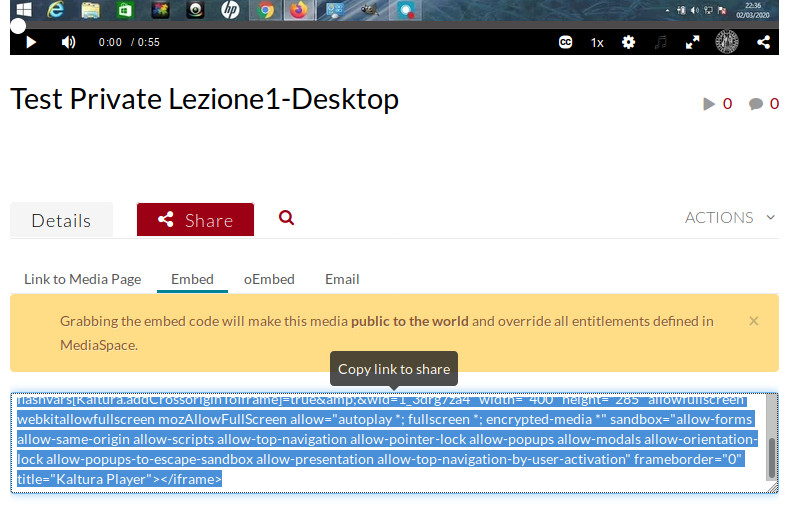
4) After pressing on Share, copy the text that appears in the embed tab
5) Create a "Page" activity in the Moodle course and in the html editor that appears at the "Page Content" press the left arrow and then the "</>" key and then paste the text as it was copied from mediaspace
It is a text of the type <iframe .....> </iframe>See image below